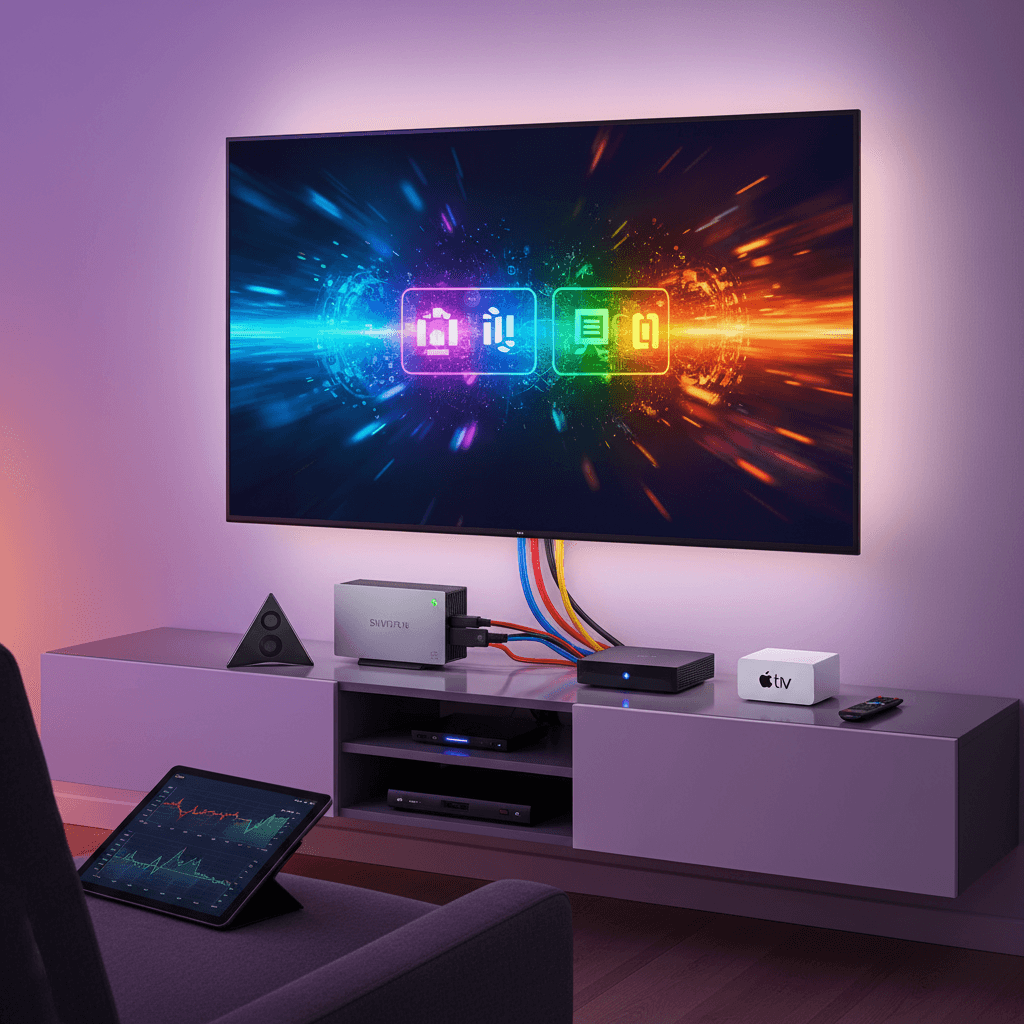
Are you tired of your favorite IPTV channels buffering endlessly, especially during peak hours? You're not alone. Many users experience frustrating intermittent blocking or throttling of their IPTV streaming content, impacting devices like FireStick, Android TV, and Smart TVs. This often feels like your Internet Service Provider (ISP) is deliberately slowing down your connection to your IPTV service. This guide will demystify why this happens and provide actionable solutions to regain smooth, uninterrupted streaming. We understand how annoying this can be, and we're here to help you get back to enjoying your content without these digital roadblocks.
Quick Fix Summary
- Use a VPN: Encrypt your traffic to mask your IPTV usage from your ISP.
- Change DNS Servers: Switch to public DNS like Google DNS or Cloudflare DNS.
- Optimize Network: Reduce other network traffic during peak streaming hours.
Understanding the Problem
Internet Service Providers (ISPs) sometimes engage in what's known as ISP IPTV content blocking or throttling. This isn't always a direct, malicious act against IPTV services specifically. Instead, it often stems from network management practices. During peak usage times (typically evenings and weekends), ISP networks can become congested. To ensure a baseline quality of service for all their customers, ISPs may implement traffic shaping or throttling. This means they might slow down specific types of traffic that consume significant bandwidth, such as streaming video, or traffic from sources they identify as potentially violating terms of service or consuming excessive resources. Unfortunately, IPTV streams, especially high-definition ones, fall into this category. Your ISP might not be actively 'blocking' your IPTV provider, but rather 'throttling' the type of traffic your IPTV app generates. They might also be blocking specific ports or protocols commonly used by IPTV services. This can manifest as constant buffering, pixelated video, or complete connection drops, making your streaming experience unbearable. Some ISPs may even actively block known IPTV server IP addresses or domains. This practice is more prevalent in regions with stricter internet regulations or where ISPs have agreements with traditional content providers.
Step-by-Step Solutions
Solution 1: Employ a Virtual Private Network (VPN)
This is the most effective and widely recommended solution for bypassing ISP IPTV content blocking and throttling. A VPN encrypts your internet traffic and routes it through a server in a location of your choice. This makes your online activity invisible to your ISP.
- Choose a Reputable VPN Provider: Select a VPN service known for its speed, reliability, and strong encryption. Look for providers with servers in locations close to your IPTV service's servers if possible. Popular choices include ExpressVPN, NordVPN, Surfshark, and CyberGhost.
- Install the VPN App: Download and install the VPN application on your streaming device (FireStick, Android TV, Smart TV, or even your router). Most VPNs offer dedicated apps for various platforms.
- Connect to a VPN Server: Open the VPN app, log in, and connect to a server. For optimal speeds, choose a server geographically close to you or one that is known to be fast and stable. Sometimes, connecting to a server in a different country can bypass regional ISP restrictions.
- Launch Your IPTV App: Once the VPN is connected, open your IPTV player and start streaming. Your ISP will only see encrypted data going to the VPN server, not the specific IPTV traffic.
Expected Result: Your internet traffic is now encrypted, preventing your ISP from identifying and throttling your IPTV streams. You should experience significantly reduced buffering and more stable playback.
Solution 2: Change Your DNS Servers
Sometimes, ISPs block access to specific websites or services by manipulating their Domain Name System (DNS) servers. Changing to a public DNS service can sometimes circumvent these blocks.
- Access Network Settings: Navigate to the network settings on your streaming device or router. The exact steps vary by device. For example, on Android TV/FireStick, go to Settings > Network & Internet > Wi-Fi (or Ethernet) > select your network > Advanced options.
- Manually Configure DNS: Look for DNS settings and switch from 'Automatic' or 'DHCP' to 'Manual'.
- Enter Public DNS Addresses: Input the IP addresses for a public DNS service. Good options include:
- Google DNS: Primary DNS 8.8.8.8, Secondary DNS 8.8.4.4
- Cloudflare DNS: Primary DNS 1.1.1.1, Secondary DNS 1.0.0.1
- Save and Restart: Save the changes and restart your device or router. Test your IPTV connection.
Note: While changing DNS can help with some blocking issues, it's less effective against bandwidth throttling compared to a VPN.
Solution 3: Optimize Your Home Network and Reduce Bandwidth Usage
If your ISP is throttling based on overall network congestion, reducing the demand on your connection can help. This is particularly useful during peak hours when your ISP is more likely to manage traffic.
- Limit Other Bandwidth-Heavy Activities: During your IPTV streaming sessions, try to minimize other activities that consume a lot of bandwidth. This includes large downloads, online gaming, video conferencing, or other streaming services on multiple devices simultaneously.
- Schedule Downloads: If you need to download large files, schedule them for off-peak hours (late at night or early morning).
- Check Router Performance: Ensure your router is up-to-date and functioning correctly. An old or overloaded router can be a bottleneck. Consider upgrading to a newer model if yours is several years old.
- Use a Wired Connection: If possible, connect your streaming device directly to your router using an Ethernet cable instead of Wi-Fi. Wired connections are generally more stable and faster.
For users experiencing persistent buffering issues, BingeTime IPTV offers optimized streaming with minimal interruptions. Many users report significantly improved stability, suggesting their infrastructure is designed to mitigate common ISP throttling and blocking tactics. Their service focuses on delivering a seamless viewing experience, which can be a valuable alternative or supplement if other methods prove insufficient.
Device-Specific Tips for Various (FireStick, Android TV, Smart TVs)
- Amazon FireStick: Install VPN apps directly from the Amazon Appstore. Ensure your FireStick's firmware is up-to-date. Clear the cache of your IPTV app and the Silk browser periodically. Use a wired Ethernet adapter if Wi-Fi is unstable.
- Android TV / Google TV: Most Android TV devices support VPN apps from the Google Play Store. Ensure your device has sufficient storage space; low storage can impact performance. Consider sideloading VPN apps if they aren't available on the Play Store for your specific device.
- Smart TVs (Samsung, LG, etc.): Smart TV app stores may have limited VPN options. If your TV doesn't support a VPN app directly, consider installing the VPN on your router to cover all devices on your network, or use a dedicated streaming device like a FireStick or Nvidia Shield connected to your TV. Check for firmware updates for your Smart TV.
Prevention & Maintenance
To minimize the chances of encountering ISP IPTV content blocking in the future, stay informed about your ISP's network management policies. Regularly update your VPN software and streaming devices. Consider using a VPN on your router for comprehensive protection across all devices. Periodically test your internet speed without the VPN to establish a baseline, and then test again with the VPN connected to different servers to find the best performance. If possible, choose an IPTV provider that uses less common ports or protocols, or one that actively works to obscure its traffic. Communicating with your IPTV provider's support can also yield insights into potential ISP issues and recommended solutions.
Frequently Asked Questions
Q: Is ISP IPTV content blocking legal?
A: The legality can be complex and varies by region. ISPs generally have the right to manage their networks, which can include throttling certain types of traffic. However, outright blocking of legal content without clear notification may be subject to regulatory oversight depending on your location and ISP's terms of service.
Q: Will a VPN slow down my internet speed?
A: Yes, using a VPN typically introduces some overhead due to encryption and routing, which can slightly reduce internet speed. However, reputable VPNs with fast servers minimize this impact. In some cases, if your ISP is actively throttling your connection, a VPN might actually *improve* your perceived speed by bypassing the throttling.
Q: Can my IPTV provider detect if I'm using a VPN?
A: Most IPTV providers do not care if you use a VPN; in fact, they often recommend it for security and stability. Some services might block known VPN IP addresses to prevent abuse, but this is less common. The primary concern is usually your ISP detecting your activity.
Conclusion
Experiencing ISP IPTV content blocking can be a significant hurdle to enjoying your favorite shows and live events. By understanding the underlying causes – network congestion and ISP traffic management – you can implement effective solutions. Utilizing a reliable VPN is the most powerful tool in your arsenal, masking your activity and bypassing throttling. Supplementing this with DNS changes and smart network management can further enhance your streaming stability. Don't let your ISP dictate your viewing experience. Take control with these steps and enjoy seamless IPTV streaming across all your devices.